Arbor school dates: from your phone to Tandlo
Find dates in the Arbor Parent App, share an event screenshot to Tandlo or forward a school email. Includes an official mobile calendar example.
Find the date in the Arbor Parent App
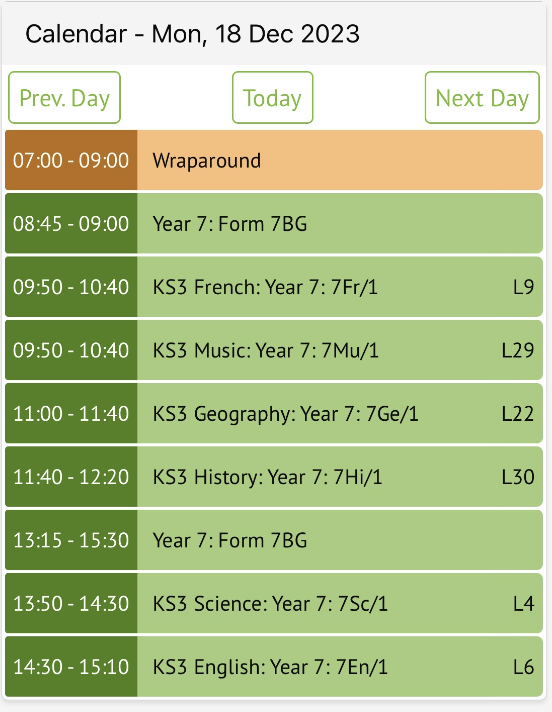
Open the menu with the three lines, then Main Dashboard. The Overview shows today's lessons and events. Move between days and tap an entry to see its details.
Arbor's parent calendar instructions also explain the Parent Portal calendar and printable timetables. On a computer, the printable timetable can be downloaded as a PDF. In the app, Arbor says you can view it and take a screenshot.
Can I connect an Arbor parent calendar link?
The parent instructions we checked describe viewing dates and downloading or viewing timetables. They do not document a parent subscription link for Tandlo. If your school supplies a separate calendar link, you can add that through Ask Tandlo → Add a calendar.
Otherwise, use an event screenshot or a school email containing the details. You do not need to recreate the child's entire lesson timetable to save a trip, club or parents' evening.
Add a screenshot through Ask Tandlo on iPhone
- Open the event details so the date, time and place are visible. Take a screenshot of just the information you need.
- Open Ask Tandlo, choose Photo and select the screenshot. You can also open the picture in Photos, tap Share and choose Tandlo.
- Choose the child, then compare the suggested details with the original notice. Correct anything unclear before choosing Save plan.
- If you want a copy in Apple Calendar or another calendar app, open the saved plan and choose Save to my calendar.
Saving a screenshot creates a plan to review; it is not a live subscription. Check the original notice for changes and update the plan if needed. Tandlo receives the item you share, not access to your school account.
If the school sends the details by email
For a single email, copy the relevant text and paste it into Ask Tandlo. You can also forward the message containing the actual dates to your Tandlo address. Check the suggested event, child and any separate tasks before saving. A notification that only says there is a new message may not contain enough information; open the original first.
For regular school messages, follow our Gmail forwarding guide to select the senders you want. See school emails to calendar events for payment deadlines and other reminders.
Check before you save
Check the date, finish time, location and child. Look for an existing copy in your calendar before adding another. A saved plan does not book a place, pay a fee, give consent or reply to the school; complete those actions in the school's original service.
Tandlo is in early access on iPhone. Android is planned. See current pricing and availability.
Try Tandlo with your family
Join the list for early access on iPhone. One email when a place opens.