Add your Tandlo address as a forwarding address in Gmail, confirm it, then make one rule that forwards only your school's senders. Everything else stays in your inbox, and Tandlo never sees it. Set up the rule on a computer; you can forward an individual email from your phone.
By Tandlo · Screens checked
Before you start
In Tandlo on iPhone, open Settings, then School emails and copy your private forwarding address. Start with one message and confirm its sender when asked. Then set up a Gmail filter for the school or club senders you want to forward.
On your phone right now?
Forward one school email from the Gmail app to your private Tandlo address. Confirm the sender in Tandlo when asked, then review what it finds. You can set up automatic selected-sender forwarding later using Gmail in a computer browser.
Set up the Tandlo side first
On iPhone, open Settings → School emails. Choose Copy address and forward one school email to that address from your usual email app. When it arrives, confirm who may send future updates. Use Automatically forward school emails for provider instructions, and Manage senders and connection to check approved senders.
Use your own private address. It is not shown here. Complete any sender confirmation before testing an automatic rule.
1
Add your Tandlo address to Gmail
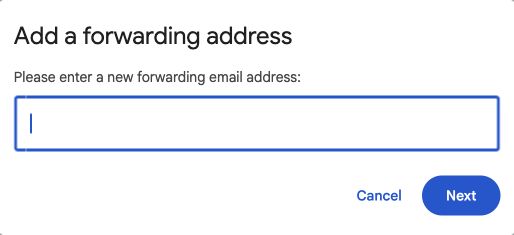
In Tandlo, open How to forward. Tap Copy address, then Open Gmail forwarding settings. In Gmail, choose Add a forwarding address and paste it. The Gmail app on a phone does not show this setting, which is why this step needs a computer.
2
Confirm it
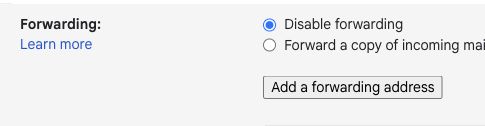
Gmail emails Tandlo a confirmation. When it appears in Tandlo, open it. Tap Open confirmation link and press Confirm. Leave Gmail's own switch that forwards a copy of all incoming mail off, because that would forward everything.
3
Make one rule for every sender
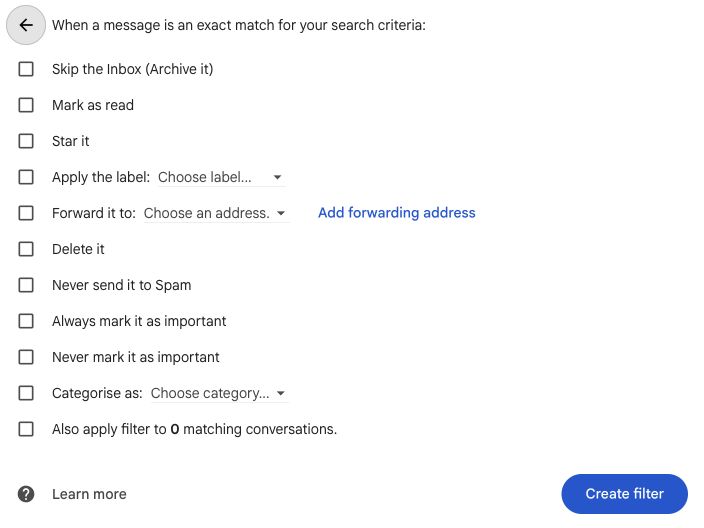
In Tandlo, tap Create my Gmail rule. Gmail opens a filter with every sender you chose already filled in. Choose Forward it to, pick your Tandlo address, and save. One rule covers them all.
That is it. The next email from your school arrives in Tandlo, and the dates in it wait in your Inbox for a yes.
Follow the Gmail settings on screen
These are real Gmail desktop screens captured on 30 September 2026. Personal details have been excluded from the crops. The sender example is fictional. Screens are shown before saving, so the pictures do not enable forwarding.
Add and verify the destination
Open Settings → See all settings → Forwarding and POP/IMAP (some accounts call it Forwarding) → Add a forwarding address. After Next, Gmail asks you to proceed and sends a verification message. Complete the confirmation through Tandlo before making the filter.
1
1. Paste your private Tandlo address into this box, then choose Next. The field is empty here to keep the address private.Enlarge screenshot
1
Choose the sender, then the forwarding action
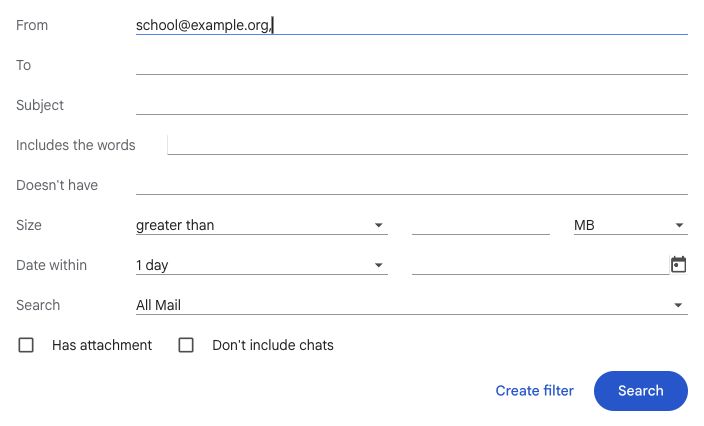
You can use Create my Gmail rule in Tandlo, or open Gmail's search options and fill in From yourself. Check the actual sender address, which may belong to a school platform. Leave To blank: putting your Tandlo address there would search for messages already addressed to Tandlo.
23
2. From limits the rule to your chosen school sender. 3. Create filter opens the actions. The address shown is fictional; use the exact sender from your school email.Enlarge screenshot
23
45
4. Tick Forward it to and select your confirmed Tandlo address. 5. Create filter saves it. This capture shows the screen before either action; no forwarding rule was saved for the screenshot.Enlarge screenshot
45
Leave whole-inbox forwarding off
6
6. Keep Disable forwarding selected for whole-inbox forwarding. Your selected-sender filter does the forwarding separately. Other account fields are cropped out.Enlarge screenshot
6
Google distinguishes forwarding every message from forwarding messages that match a filter. The filter only forwards new matching emails; it does not forward your old inbox. See Google's forwarding instructions and Google's filter guide.
Once saved, check one new matching email in Tandlo and review the suggested dates. Reading emails uses AI. Free has a one-time starter allowance of 20 AI uses per family. Family includes 250 AI uses per family each billing month. See AI allowances and current availability.
See what arrives in Tandlo
After setting up the rule, check a new matching email in Tandlo's Inbox. Review the child, date, time, place and tasks against the original message. Check for an existing event before adding another copy. Plans stay in Tandlo; export is optional.
Only need one detail?
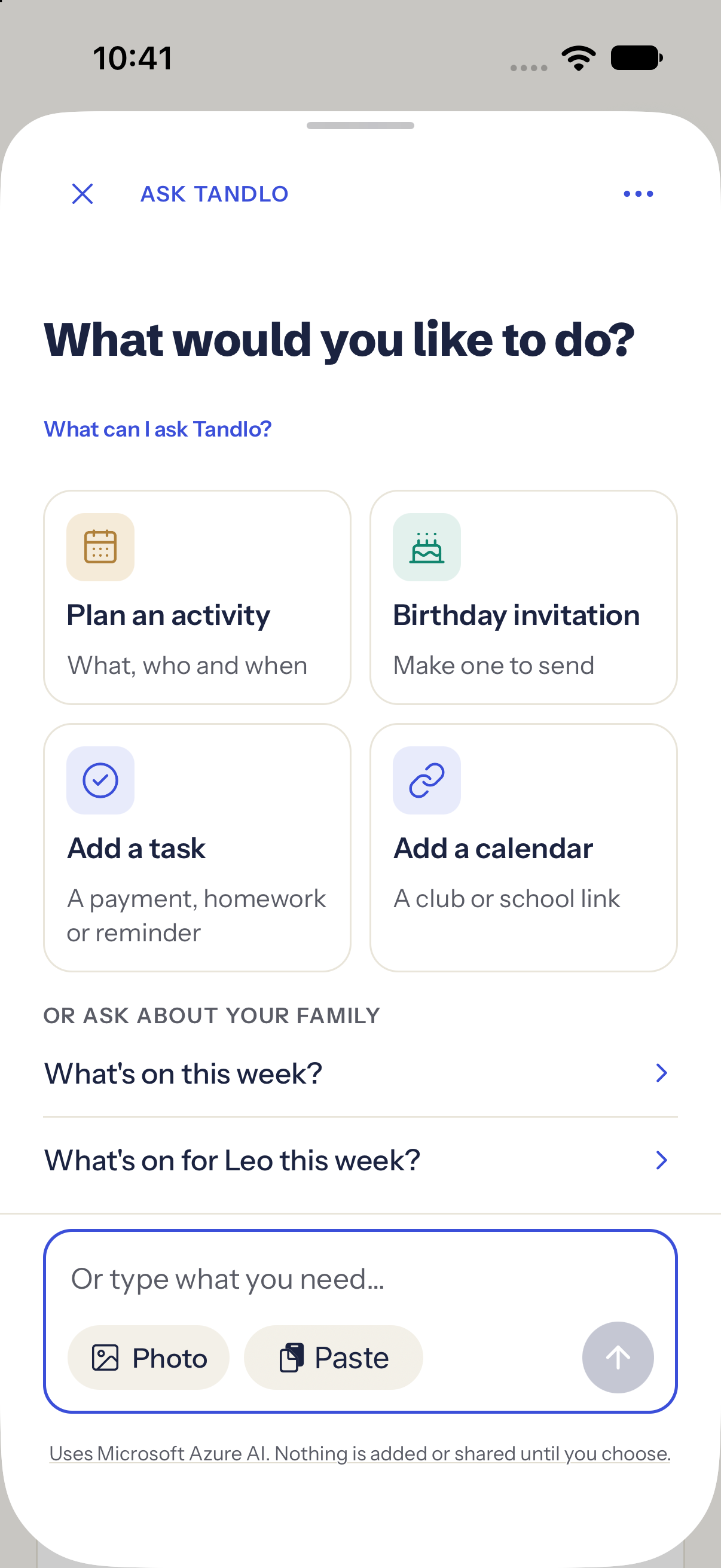
If an email only links to a portal, open it and bring the relevant text or screenshot into Ask Tandlo. Use Paste for copied text, or Photo for a screenshot or letter. You choose what to send.
Saving a plan does not send a reply, pay a fee or give school consent. Reading content uses your AI allowance. See Free and Family pricing.
Actual iPhone screen from build 117, captured 13 October 2026 with fictional family data. This shows the alternative Ask Tandlo route, not email-rule setup.
What happens to an email from someone else?
It waits unopened. You see who sent it, the subject and the date, nothing more, until you say that sender is one you want. If you do not, it is deleted after seven days.
Why is Forward it greyed out in my Gmail filter?
Gmail only lets a filter forward to an address you have already added and confirmed. Do steps 1 and 2 first, then reload Gmail and make the filter again. If Forward it is still greyed out, or Gmail's settings have no Forwarding tab at all, you are probably signed in to a work or school Google account, and its administrator has turned forwarding off. Use your personal Gmail, or forward school emails to Tandlo by hand.
Why is my Gmail forwarding not working?
Check three things. The forwarding address still says confirmed in Gmail's settings. The filter's From list has the address your school actually sends from, which is often a platform such as ParentPay rather than the school. And the email arrived after you made the filter, because Gmail does not forward emails that were already in your inbox. Forward one of those by hand instead.
How do I stop?
Delete the rule in Gmail, or remove the forwarding address in Gmail's settings. You do not need to ask us. In Tandlo you can also change your address, and the old one stops working.
What Tandlo does not do
It does not sign in to your Gmail, read your inbox or see anything your rule does not forward. Forwarded emails are kept for 30 days, then deleted. How the whole thing works is on the school email page.
Is there a one-tap way?
Coming. A read-only Gmail connection is being tested with early-access families and opens to everyone once Google has reviewed it. Until then, forwarding is how Tandlo gets your school's emails.
Try it with one email
Forward one school email to your Tandlo address and see what comes back. Nothing goes on your calendar until you say yes.