Forward school emails from Outlook or Hotmail
Set up an Outlook.com rule for selected school senders, or forward one email from your phone to Tandlo.
Set up the Tandlo side first
On iPhone, open Settings → School emails. Choose Copy address and forward one school email to that address from your usual email app. When it arrives, confirm who may send future updates. Use Automatically forward school emails for provider instructions, and Manage senders and connection to check approved senders.
Use your own private address. It is not shown here. Complete any sender confirmation before testing an automatic rule.
Outlook.com and Hotmail: use a sender rule
For a personal Hotmail or Outlook.com mailbox, open Outlook in a computer browser. Start with one school sender, then repeat for other addresses the school uses.
- Open Settings → Mail → Rules and add a rule.
- Name it School emails to Tandlo.
- Choose the From condition and enter the school's exact sending address. Do not select a condition covering every message.
- Choose the Forward to action and paste your Tandlo address.
- Save. Test with a new matching message; forward an older email yourself if needed.
Keep the original message: do not add a delete action. Microsoft's forwarding-rule instructions explain the available actions and how forwarding differs from redirecting.
Recognise the rule settings
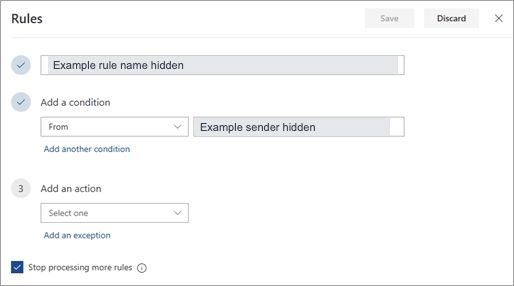
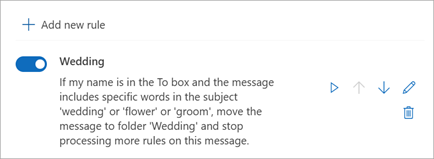
Microsoft's published screenshots below show the rule editor and on/off switch. We checked the written Outlook.com steps and these official examples on 30 September 2026. We have not tested forwarding in a live Outlook.com account.
Enlarge screenshot
For your rule, replace the example with a school sender and your own private Tandlo destination. Keep the condition specific; do not choose Apply to all messages. If several schools email you, a separate rule for each sender is easier to check than adding conditions that may need to match together.
Review Stop processing more rules too: if selected, later rules may not run for a matching message. An earlier rule with that setting may prevent your Tandlo rule from running. Keep existing sorting rules in mind.
Using your phone
Open the email in Outlook, find Forward in the reply or message menu, enter your Tandlo address and send. For automatic setup, use the browser steps above; the mobile app may not offer the same rule settings.
Work or school account?
Your organisation may restrict external forwarding. If a rule is unavailable or a message is rejected, ask its administrator rather than changing security settings. Use a personal mailbox for family school correspondence where appropriate.
Stop forwarding
Enlarge screenshot
Return to Mail → Rules and turn off or delete the Tandlo rule. Check any other rules you created for school senders too.
Only have one email? Ask Tandlo
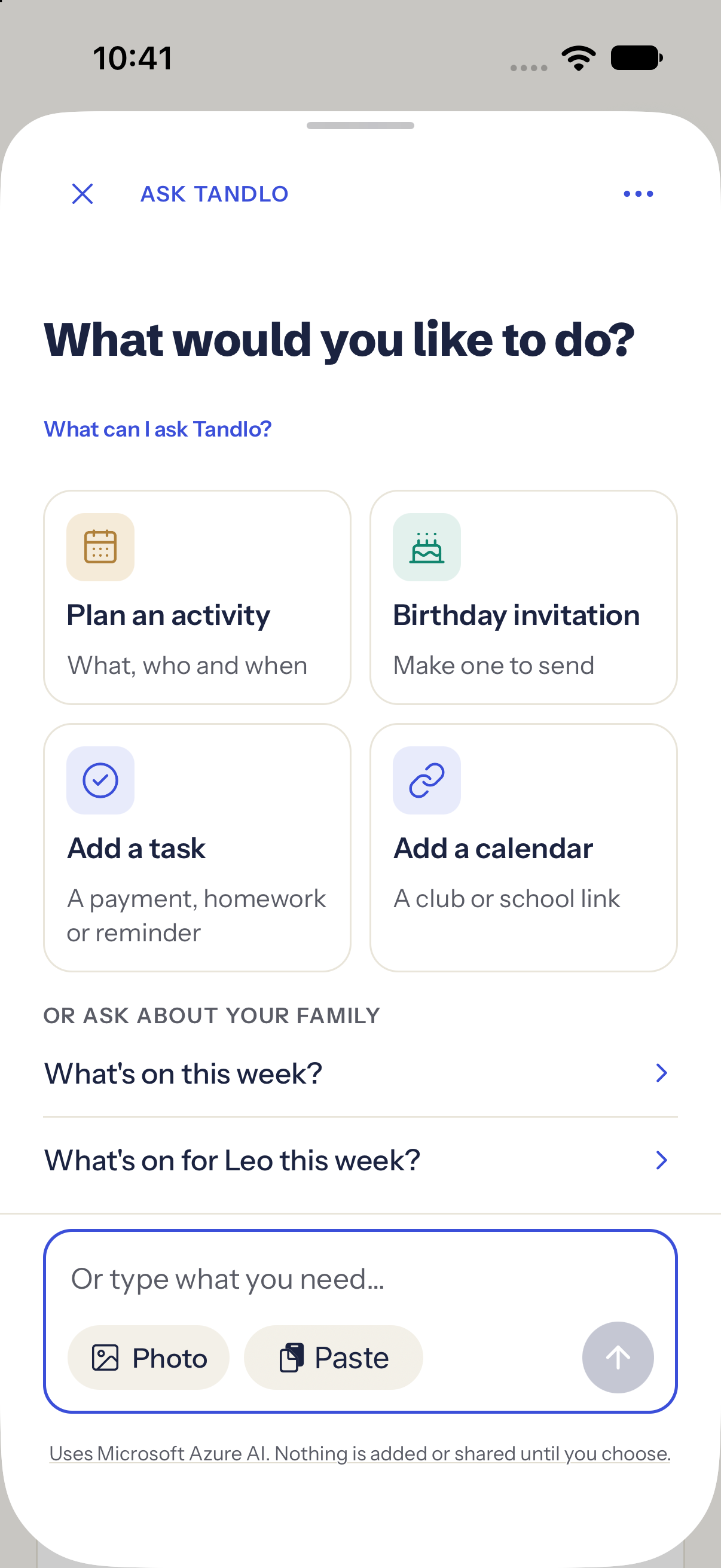
Copy the relevant email text into Ask Tandlo, or choose Photo for a screenshot or letter. You can also use Share and choose Tandlo where your app offers it. Check the suggested details before saving. Adding a plan does not send a reply, pay a fee or give school consent.
See what arrives in Tandlo
After setting up the rule, check a new matching email in Tandlo's Inbox. Review the child, date, time, place and tasks against the original message. Check for an existing event before adding another copy. Plans stay in Tandlo; export is optional.
Only need one detail?
If an email only links to a portal, open it and bring the relevant text or screenshot into Ask Tandlo. Use Paste for copied text, or Photo for a screenshot or letter. You choose what to send.
Saving a plan does not send a reply, pay a fee or give school consent. Reading content uses your AI allowance. See Free and Family pricing.
Check the first result
If nothing arrives, compare the address you pasted with Tandlo's current address and check the school's actual sender address, including any school platform. A message that only links to a portal may not contain the dates; open it and bring the relevant text or screenshot into Ask Tandlo instead.
Keep the original email for attachments and later changes. Check for an existing event before adding another copy.
Choose your email provider
Make the next school email easier
Bring the details into Tandlo and check the plan before adding it to your family week.
Join early access