Add your SchoolsBuddy calendar to Tandlo
Copy your calendar link from SchoolsBuddy, preview it in Tandlo and choose which children the activities belong to. Your school bookings stay in SchoolsBuddy; the dates can sit alongside the rest of your family week.
1. Copy your SchoolsBuddy calendar link
On your phone
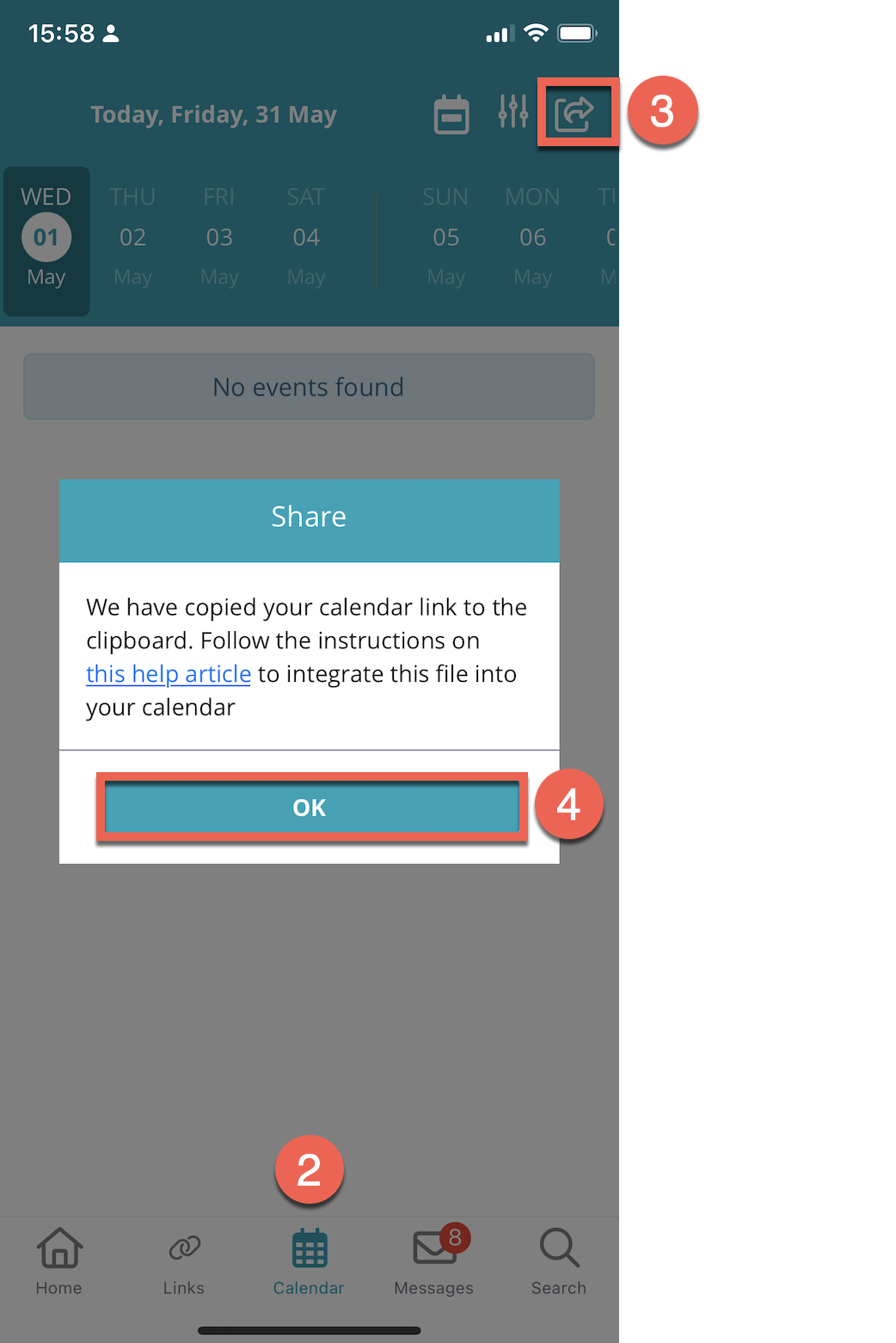
In the SchoolsBuddy app: sign in to the SchoolsBuddy app, open Calendar and tap the Share icon at the top right. SchoolsBuddy says the link is copied to your clipboard; dismiss the confirmation.
You can complete the next step on the same phone: switch to Ask Tandlo and paste the copied link, or choose Add a calendar. You do not need a computer.
On a computer
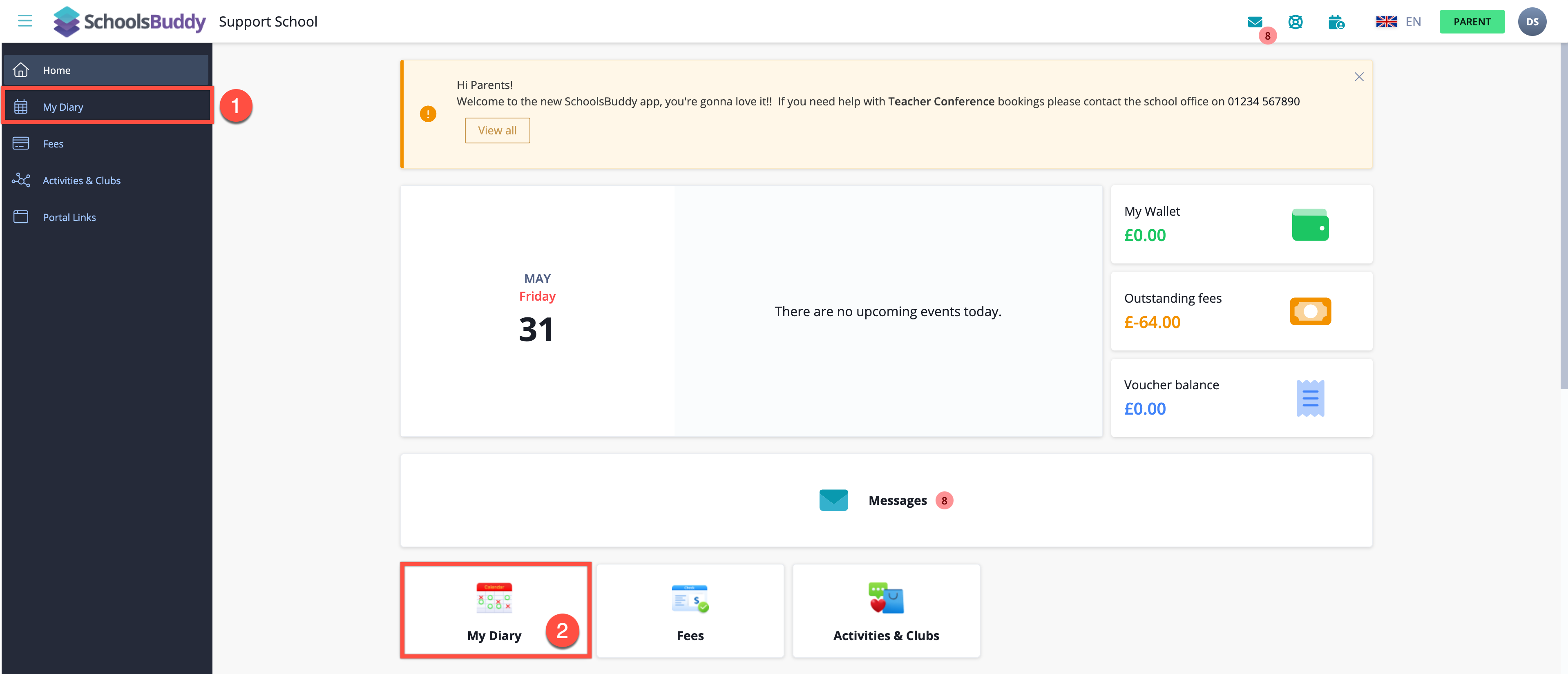
In the SchoolsBuddy website: open My Diary, choose Share, then Copy to clipboard in the calendar-link window.
These steps follow SchoolsBuddy's mobile instructions and desktop instructions, both dated May 2024 and checked on 28 September 2026. Your school's version may look different.
Keep the calendar link private. It can contain an access key, so do not post it in a parent group or include it in a screenshot.
2. Add the link in Tandlo
- Open Ask Tandlo and choose Add a calendar. You can also paste the SchoolsBuddy link straight into Ask Tandlo to open the calendar preview.
- Paste the complete SchoolsBuddy link into Calendar link, then choose Preview calendar.
- Give it a recognisable name, such as SchoolsBuddy clubs. Under Whose is it?, choose the children the calendar belongs to.
- If different activities belong to different children, use Different children for different activities? when it appears. Check the dates, times and children before choosing Add calendar.
You can also reach the same setup through Settings → Calendars → Add a calendar (ICS link).
The link does not have to end in .ics. Paste it exactly as SchoolsBuddy supplies it, including the part after any question mark. A school login-page address is not a calendar link.
Tandlo reads the linked calendar; it does not change your bookings in SchoolsBuddy. Make booking changes through your school's normal SchoolsBuddy process.
3. Check the first few dates
Compare an upcoming activity with My Diary in SchoolsBuddy. Check its day, start and finish times and the child it appears under. For a calendar covering several children, check at least one activity for each child.
A calendar subscription can receive later changes, but updates may take time to appear. For an urgent cancellation or changed pickup, use the school's latest message as your reference.
What if the link or an activity is missing?
- No Share option: try your school's SchoolsBuddy site in a computer browser. If it is still missing, ask the school where to find your parent calendar subscription link.
- The preview cannot read the link: copy a fresh link from SchoolsBuddy. Check that you copied the calendar link rather than the page address, and that the full link was pasted.
- No dates in the preview: first check that the activity is confirmed and visible in SchoolsBuddy. Tandlo can only show events supplied by that calendar, within its supported date window.
- Wrong child: check the child selections for the calendar and, where available, each activity in Tandlo.
Why is the same activity showing twice?
You may have added the same calendar more than once, or also saved an activity from a school email. In Settings, open Calendars and temporarily hide one calendar to identify which copy you are seeing. Check any personal notes before removing a duplicate.
Can I add SchoolsBuddy directly to Apple Calendar?
Yes. SchoolsBuddy also publishes instructions for adding its calendar directly to an iPhone or Apple Calendar on a Mac. You can use that route if all you need is the SchoolsBuddy diary in your existing calendar.
For current Apple steps and other school calendar options, see school dates on your phone. Tandlo is useful when you also want letters, invitations and email reminders organised alongside those dates.
What about letters, emails and payment reminders?
A diary link only supplies what the school publishes in that calendar. It may not include the kit to bring, a consent form or a payment deadline mentioned in a separate message.
You can forward a school email to Tandlo and review its suggested dates and next steps. For recurring messages, set up a Gmail forwarding filter for the senders you choose. Check for an existing calendar event before saving another copy.
Tandlo is in early access on iPhone. See current availability and pricing.
Try Tandlo with your family
Join the list for early access on iPhone. One email when a place opens.